
1. Login your Shopify Store in Admin panel.
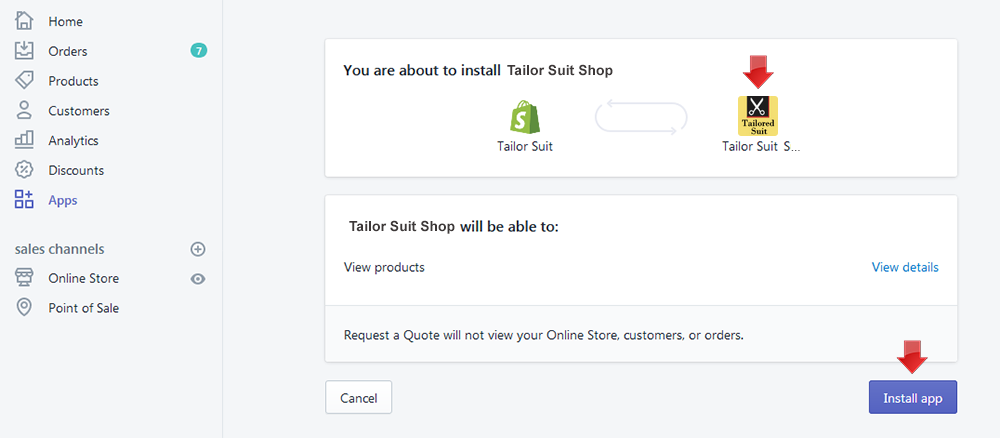
2. Now hit our App URL https://apps.shopify.com/tailor-suit-shop and click to Get button. A popup will be appear then enter your store's URL and click to "Login" button. After click on login button you will view the following page. Now click on "Install App" button and your app will be install. Now check the app in Admin's "Apps" section.
To show this App in your theme, you need to add some codes in your published theme. So total process are given below...
If you are not familiar with liquid code changes or need any sort of help then just add install@solvercircle.com as a staff member of your store (If you don't know how to add "staff member" then click here), email us to explain the problems and we will fix the issues for you.
3. Go to "Themes" menu of Admin Dashboard and Edit your published themes to install the app. Follow the below steps to Edit your theme.
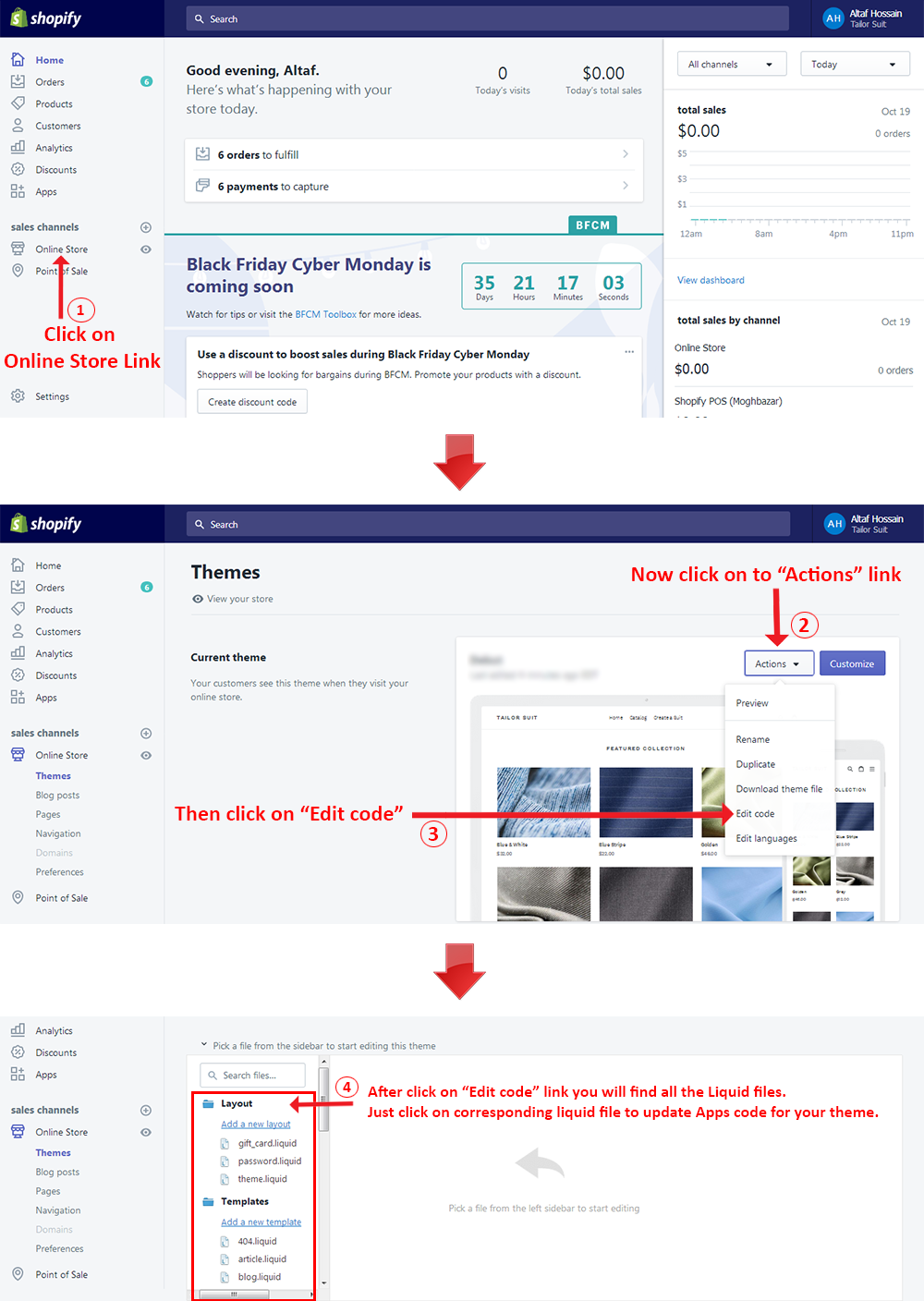
4. Now follow the below Steps and put the "Tailor Suit Shop" Apps Code in the following liquid files of Narrative themes.
For manual installation go to sc-tsuit-btn-loader-150812.liquid file under the "Snippets" folder and change {% assign suit_install_type = 'auto' %} this code to {% assign suit_install_type = 'manual' %}.
Screenshots of theme file for the Step 1 code is given below:

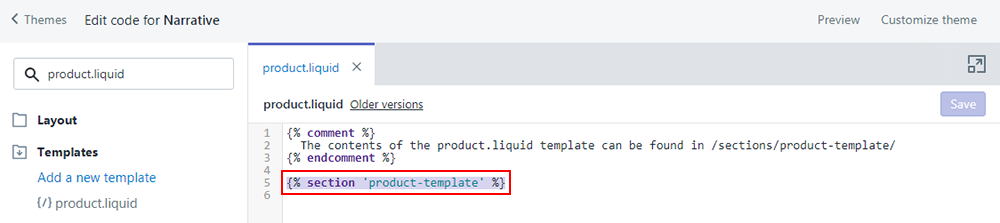
Go to product.liquid file under the "Templates" folder and find this code {% section 'product-template' %} in the following location like as below screenshot.
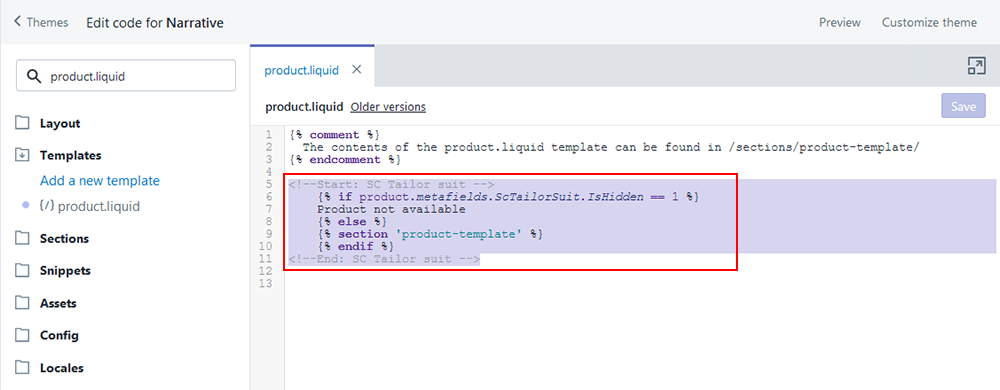
Now replace this code with the following codes like as below screenshot
<!--Start: SC Tailor suit -->
	{% if product.metafields.ScTailorSuit.IsHidden == 1 %}
	Product not available
	{% else %}
	{% section 'product-template' %}
	{% endif %}
<!--End: SC Tailor suit -->
Go to product-form.liquid file under the "Snippets" folder and find the following location (after "Add to Cart" button's code) like as below screenshot.
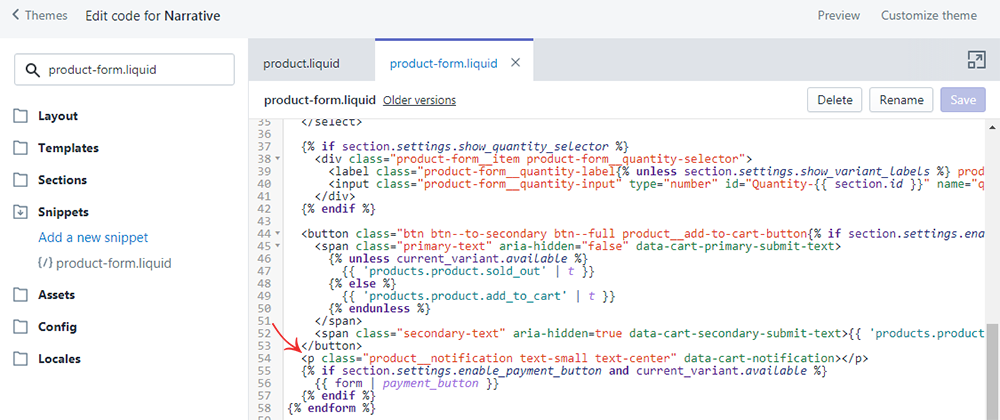
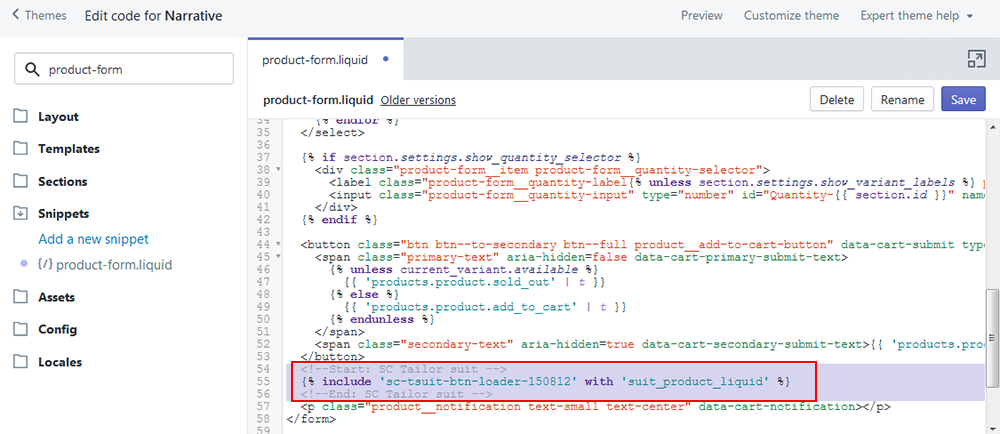
Now just copy the following code and insert it to the product-form.liquid files above mentioned location (after "Add to Cart" button's code) like as below screenshot.
	<!--Start: SC Tailor suit -->
	  {% include 'sc-tsuit-btn-loader-150812' with 'suit_product_liquid' %}
	<!--End: SC Tailor suit -->
Go to cart-template.liquid file under the "Sections" folder and find the following location and select the code between line number 50 to 135 (approximate) like as below screenshot.
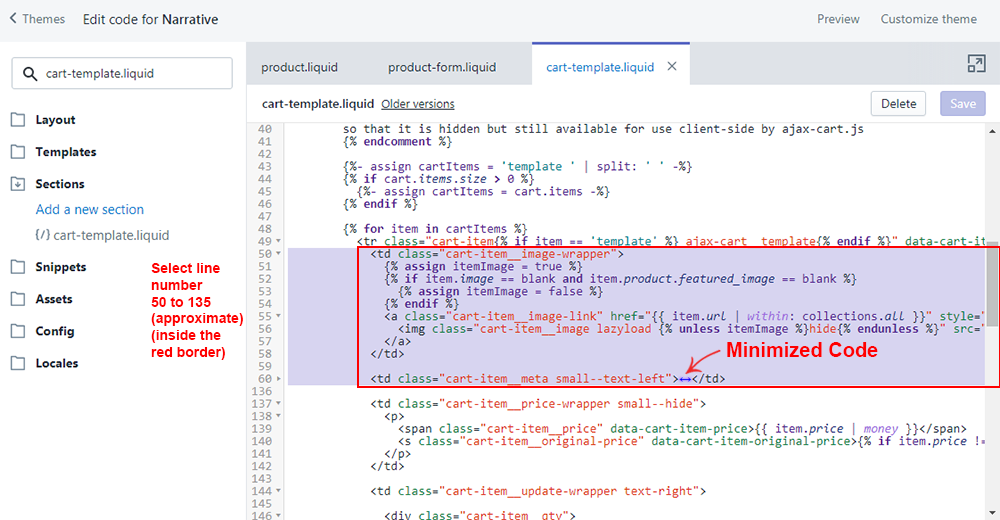
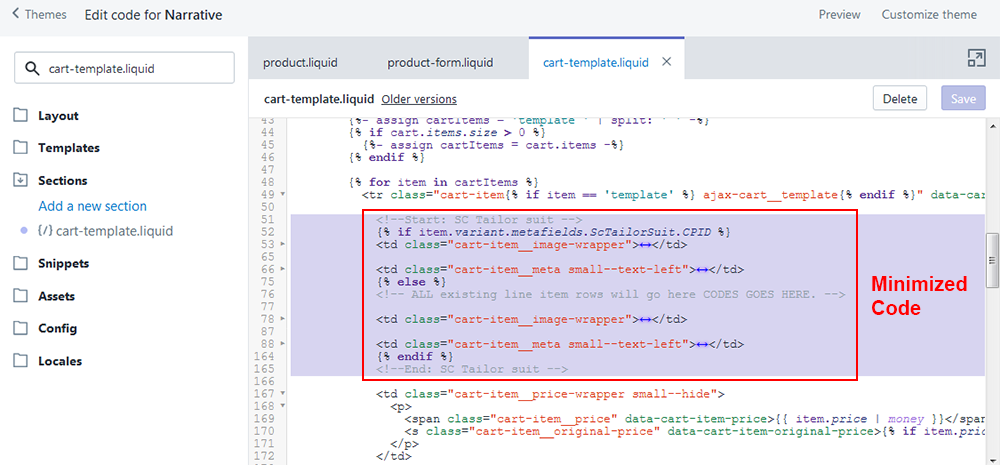
Now replace the selected codes with this following codes like as below screenshot.
<!--Start: SC Tailor suit -->
{% if item.variant.metafields.ScTailorSuit.CPID %}
<td class="cart-item__image-wrapper">
{% if item.variant.metafields.ScTailorSuit.FrontImage %}
<a href="{{ item.variant.metafields.ScTailorSuit.FrontImage}}" class="cart-item__image-link">
<img class="sc-cart-img" src="{{ item.variant.metafields.ScTailorSuit.FrontImage}}" style="width:100px;" alt="{{ item.title | escape }}" />
</a>
{% endif %}
{% if item.variant.metafields.ScTailorSuit.BackImage %}
<a href="{{ item.variant.metafields.ScTailorSuit.BackImage}}" class="cart-item__image-link">
<img class="sc-cart-img" src="{{ item.variant.metafields.ScTailorSuit.BackImage}}" style="width:100px;" alt="{{ item.title | escape }}" />
</a>
{% endif %}
</td>
<td class="cart-item__meta small--text-left">
<a class="cart-item__meta-title h4" href="{{ item.variant.metafields.ScTailorSuit.Product_URL }}&ex_cp_id={{ item.variant.metafields.ScTailorSuit.CPID }}&ex_v_id={{ item.variant.id }}" data-cart-item-href data-cart-item-title>{{ item.title }}</a>
<p class="small--hide">
<a href="/cart/change?line={{ forloop.index }}&quantity=0" class="btn btn--small btn--clear btn--primary-color cart-item__remove" data-cart-item-delete>{{ 'cart.general.remove' | t }}</a>
</p>
<p class="cart-item__message" data-item-message></p>
</td>
{% else %}
<!-- ALL existing line item rows will go here CODES GOES HERE. -->
<td class="cart-item__image-wrapper">
{% assign itemImage = true %}
{% if item.image == blank and item.product.featured_image == blank %}
{% assign itemImage = false %}
{% endif %}
<a class="cart-item__image-link" href="{{ item.url | within: collections.all }}" style="background-image: {% if itemImage %}url('{{ item | img_url: 'medium' }}'){% else %}none{% endif %};" data-cart-item-background-image data-cart-item-href>
<img class="cart-item__image lazyload {% unless itemImage %}hide{% endunless %}" src="{{ item | img_url: 'medium' }}" alt="{{ item.title | escape }}" data-cart-item-image>
</a>
</td>
<td class="cart-item__meta small--text-left">
<a class="cart-item__meta-title h4" href="{{ item.url }}" data-cart-item-href data-cart-item-title>{{ item.product.title }}</a>
<p class="cart-item__meta-variant" data-cart-item-variant-title>
{% unless item.product.variants.size == 1 and item.product.options.size == 1 and item.product.options.first == 'Title' and item.variant.title == 'Default Title' %}
{{ item.variant.title }}
{% endunless %}
</p>
{% comment %}
Optional, loop through custom product line items if available
Line item properties come in as having two parts. The first part will be passed with the default form,
but p.last is the actual custom property and may be blank. If it is, don't show it.
For more info on line item properties, visit:
- https://help.shopify.com/themes/customization/products/features/get-customization-information-for-products
If the item has no properties, then include a property element with a template class
so that it is hidden but still available for use client-side by ajax-cart.js
{% endcomment %}
{%- assign itemProperties = 'template ' | split: ' ' -%}
{%- assign property_size = item.properties | size -%}
{% if property_size > 0 %}
{%- assign itemProperties = item.properties -%}
{% endif %}
<ul class="cart-item__properties" data-cart-item-property-list>
{% for p in itemProperties %}
{% assign first_character_in_key = p.first | truncate: 1, '' %}
{% unless p.last == blank or first_character_in_key == '_' %}
<li class="cart-item__property{% if p == 'template' %} ajax-cart__template{% endif %}{% if p.last == blank %} visually-hidden{% endif %}" data-cart-item-property>
{{ p.first }}:
{% comment %}
Check if there was an uploaded file associated
{% endcomment %}
{% if p.last contains '/uploads/' %}
<a href="{{ p.last }}">{{ p.last | split: '/' | last }}</a>
{% else %}
{{ p.last }}
{% endif %}
</li>
{% endunless %}
{% endfor %}
</ul>
<p class="cart-item__price-container medium-up--hide">
<span class="cart-item__price" data-cart-item-price>{{ item.price | money }}</span>
<s class="cart-item__original-price" data-cart-item-original-price>{% if item.price != item.original_price %}{{ item.original_price | money }}{% endif %}</s>
</p>
<div class="cart-item__discount-container" data-cart-item-discount-list>
{% comment %}
If the item has no properties, then include a property element with a template class
so that it is hidden but still available for use client-side by ajax-cart.js
{% endcomment %}
{%- assign itemDiscounts = 'template ' | split: ' ' -%}
{% if item.discounts.size > 0 %}
{%- assign itemDiscounts = item.discounts -%}
{% endif %}
{% for discount in itemDiscounts %}
<p class="cart-item__discount text-small{% if discount == 'template' %} ajax-cart__template{% endif %}" data-cart-item-discount>{{ discount.title }}</p>
{% endfor %}
</div>
<p class="small--hide">
<a href="/cart/change?line={{ forloop.index }}&quantity=0" class="btn btn--small btn--clear btn--primary-color cart-item__remove" data-cart-item-delete>{{ 'cart.general.remove' | t }}</a>
</p>
<p class="cart-item__message" data-item-message></p>
</td>
{% endif %}
<!--End: SC Tailor suit -->
Go to collection-template.liquid file under the "Sections" folder and find this code {% include 'product-card', product: product, grid_style: section.settings.grid_style %} in the following location like as below screenshot.
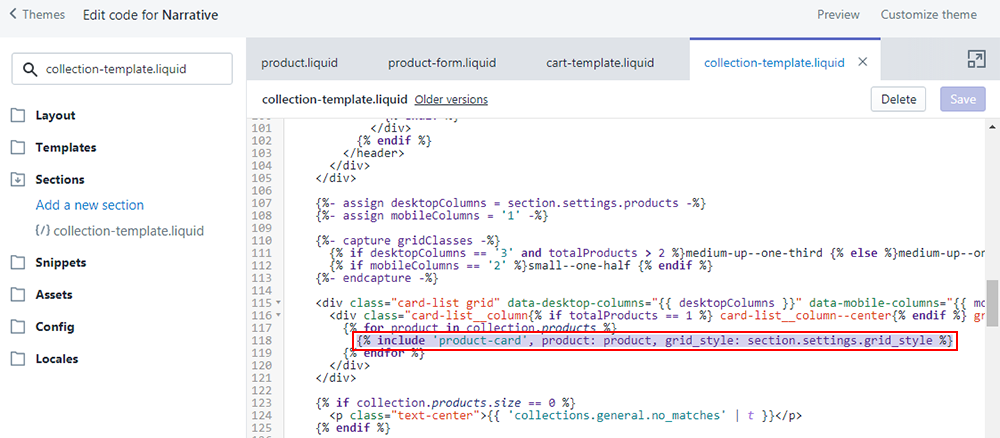
Now replace this code with the following codes like as below screenshot
            <!--Start: SC Tailor suit -->
            {% if product.metafields.ScTailorSuit.IsHidden == 1 %}
            {% else %}
            {% include 'product-card', product: product, grid_style: section.settings.grid_style %}
            {% endif %}
            <!--End: SC Tailor suit -->
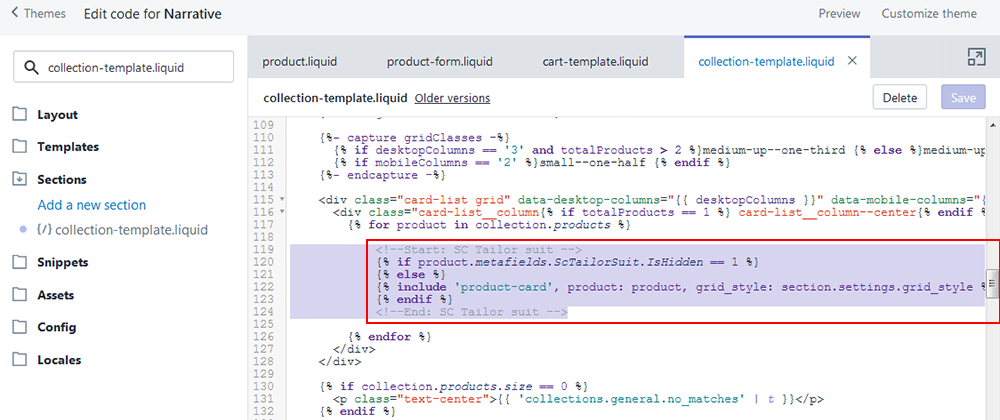
Go to search-template.liquid file under the "Sections" folder and find the following location and select line number 33 to 39 (approximate) like as below screenshot
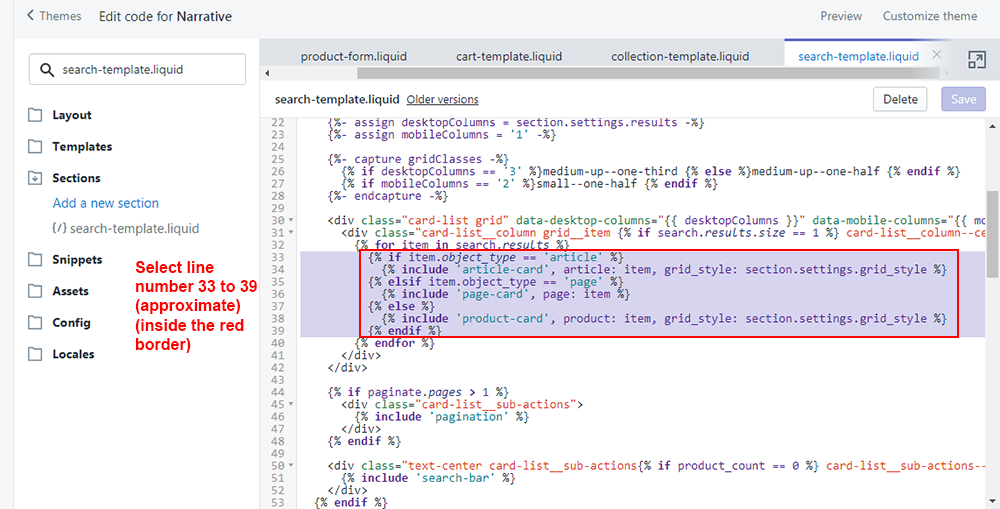
Now replace the selected codes with this following codes like as below screenshot.
        <!--Start: SC Tailor suit -->
        {% if item.metafields.ScTailorSuit.IsHidden == 1 %}
        {% else %}
        {% if item.object_type == 'article' %}
          {% include 'article-card', article: item, grid_style: section.settings.grid_style %}
          {% elsif item.object_type == 'page' %}
          {% include 'page-card', page: item %}
          {% else %}
          {% include 'product-card', product: item, grid_style: section.settings.grid_style %}
          {% endif %}
        {% endif %}
        <!--End: SC Tailor suit -->

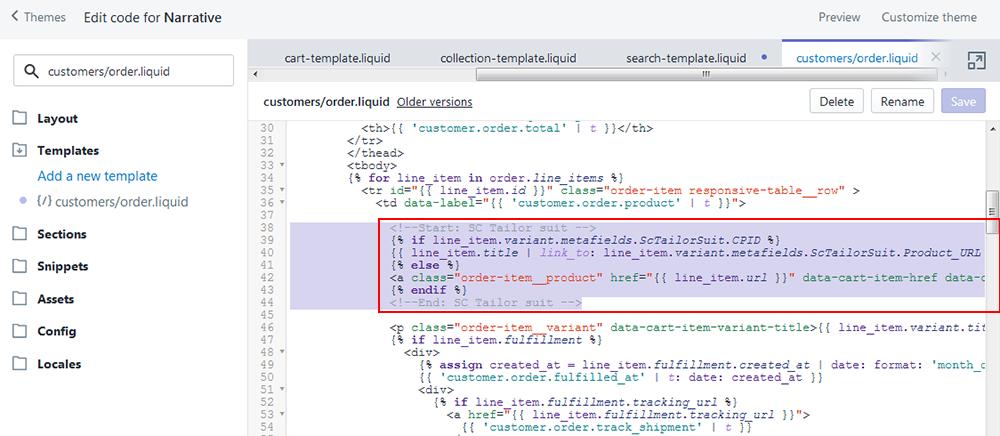
Go to customers/order.liquid file under the "Templates" folder and find the following location and select this code <a class="order-item__product" href="{{ line_item.url }}" data-cart-item-href data-cart-item-title>{{ line_item.product.title }}</a> like as below screenshot.
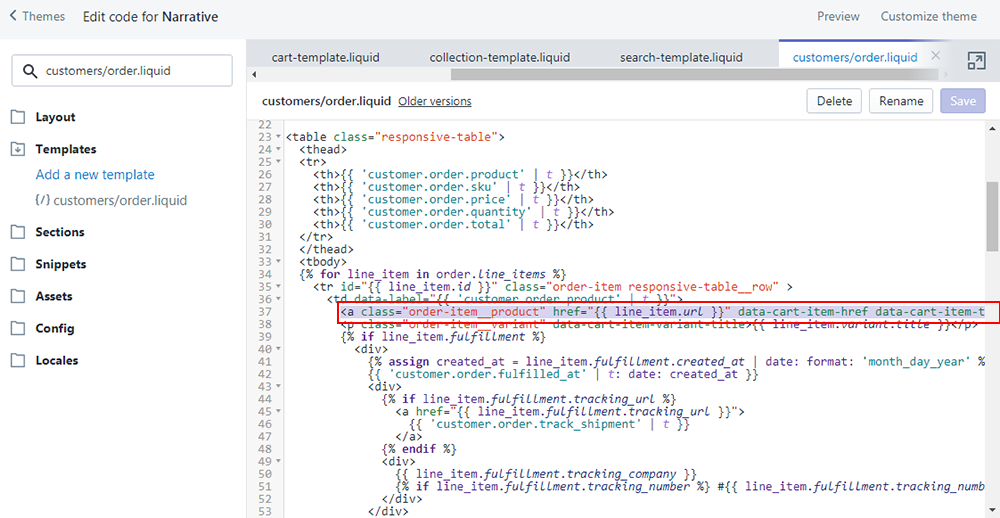
Now replace the selected code with this following codes like as below screenshot.
              <!--Start: SC Tailor suit -->
              {% if line_item.variant.metafields.ScTailorSuit.CPID %}
              {{ line_item.title | link_to: line_item.variant.metafields.ScTailorSuit.Product_URL }}
              {% else %}
              <a class="order-item__product" href="{{ line_item.url }}" data-cart-item-href data-cart-item-title>{{ line_item.product.title }}</a>
              {% endif %}
              <!--End: SC Tailor suit -->
This step is little bit different: You need to add codes in theme.min.js.liquid file. It is min (minify) file so firstly you need to "unminify" the file to add codes in this file.
At first go to theme.min.js.liquid file under the "Assets" folder. Now copy all the codes then unminify it through online (You will find many tools in online to convert minify to unminify the js codes). Now insert our code as bellow instructions then again minify (min) it through online and paste & save it to the shopify theme file (theme.min.js.liquid).
Go to theme.min.js.liquid file under the "Assets" folder and find the following location's code this._updateOfflineStatus)) like as below screenshot.
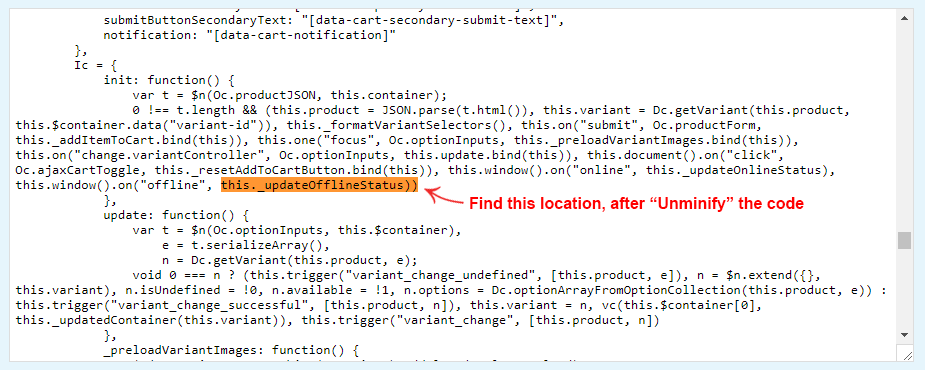
Now copy the following codes and insert it just after the theme.min.js.liquid files above mentioned location like as below screenshot.
      if (typeof TSuit_Update_Data_URL == 'function')
      TSuit_Update_Data_URL(variant)

Finally, minify (min) this file through online and paste & save it to the shopify theme file (theme.min.js.liquid).
5. So your app has installed. Now go to "Apps" menu of Admin Dashboard and click on the "Tailor Shop Suit" App link.
6. Now customize "Make Suit Button", "Add to Cart Button", "Price Info" and "Measurement Unit" from "Settings" option. Advanced users can add custom CSS from this section.
7. Insert customization price for 2 piece or 3 piece suit and must be click on "Activate Suit" button from "Manage Products" option.
8. Now check it in the frontend.