YouQuote: Request a Quote Form is a Shopify app by SolverCircle that lets customers request personalized quotes from product, collection, cart, and other storefront pages. Merchants review requests, adjust prices and quantities, create draft orders, and send PDF quotes with checkout links.
YouQuote on the Shopify App Store
Create customizable quote forms, hide Add to Cart, convert quote requests into draft orders, offer discount, and send checkout-ready quote invoice with YouQuote.
Frequently asked questions
Getting Started
What is YouQuote?
YouQuote: Request a Quote Form — usually shortened to YouQuote — is a Shopify app by SolverCircle that adds a request-a-quote workflow to a storefront. Customers add products to a quote list, submit a form with their contact details and requirements, and receive a quote instead of paying immediately. Merchants review each request, adjust pricing and quantities, and convert it into a Shopify draft order or send a PDF quote with a checkout link.
It is designed for stores that sell made-to-order, custom, wholesale, bulk, or price-on-request products, and for any business that prefers to discuss a price before an order is placed.
Is YouQuote the same as the "Request a Quote" app?
Yes. "YouQuote" is the product name, and "Request a Quote Form" describes its main function. The Shopify App Store listing is titled YouQuote: Request a Quote Form, and the app is also referred to as the Request a Quote app in SolverCircle documentation and support conversations.
If you are looking for the app in Shopify Admin, search for either name. The listing URL is apps.shopify.com/request-a-quote.
Who develops YouQuote?
YouQuote is developed and supported by SolverCircle, a Shopify app developer that also builds wholesale, product-options, preorder, and product-design apps. Support is provided by the SolverCircle team through email, in-app live chat during business hours, and the SolverCircle support portal.
What can customers and merchants do with YouQuote?
Customers can request a quote from a product page, collection page, cart, home page, or another storefront page where the app is placed. They can add several products to one request, complete standard and custom fields, upload files, and submit the request to the merchant.
Merchants can create multiple quote forms, add custom fields, hide prices and purchase buttons, customize button design, review and search quote requests, adjust discounts and quantities, create draft orders, send PDF quotes and checkout links, and export quote data. Some advanced options depend on the plan.
How do I install YouQuote?
Install the app from its Shopify App Store listing, approve the requested permissions, and open YouQuote from Shopify Admin. The app opens with a setup and Quick Start experience that lets you preview sample content before configuring your own forms.
After installation, enable the app embed in your theme and enable quotes for the products you want to include. Installation alone does not guarantee that the storefront button will appear.
How do I activate the YouQuote app embed?
In Shopify Admin, go to Online Store → Themes, then click Customize on the theme you want to use. Open App embeds in the theme editor sidebar, find YouQuote: Request a Quote Form, and switch it on. Save the theme, then check a product page in a private browser window.
If you are working on an unpublished theme, open that theme's preview rather than the live storefront. The app embed must be enabled separately for each theme you intend to use.
See the official theme-installation and activation FAQ for the related tutorial entry.
How do I test the full quote journey before going live?
Run one complete test with a real product and a real email address:
- Enable the app embed and enable quotes for one test product.
- Open the product page in a private browser window.
- Add the product to the quote list and submit the form, including a custom field and a file upload if you use them.
- Confirm that the confirmation message appears and the request is visible in Quote List.
- Check that the admin notification and the requester notification arrive.
- Create a draft order from the request and verify the customer, products, quantities, price, shipping, and any custom information.
- Send yourself the PDF or checkout link and open it on both desktop and mobile. This single end-to-end test finds more problems than checking individual settings in isolation.
Do I need to give SolverCircle access to my Shopify store?
Not for every question. Many setup tasks — enabling the app embed, choosing products, creating fields, editing notifications — can be completed by you from the app and your Shopify admin.
For a store-specific problem that cannot be diagnosed from a screenshot, support may ask you to approve Shopify collaborator access or add a staff account. Grant only the permissions needed for the investigation, never send your Shopify password, and remove the access when the issue is resolved.
Can I test YouQuote on a development store or during the trial?
Yes. YouQuote offers a 10-day free trial, and the App Store listing includes a Free plan for development stores. A development store is a sensible place to test forms, notifications, and draft orders before changing a live storefront.
If you test on a live store, use a hidden or low-traffic product first. Trial length, plan eligibility, and feature access can change, so confirm the current terms on the App Store listing.
What are the benefits of this app?
Some benefits of using this quoting app for your store:
- Streamlined Communication: Facilitates direct communication between customers and shop owners, ensuring that customer needs are clearly understood.
- Custom Quotes: Allows customers to request personalized quotes for specific products, enhancing the shopping experience.
- Increased Customer Engagement: Encourages customers to interact with the store, fostering a relationship that can lead to increased loyalty and repeat business.
- Efficiency in Processing Requests: Simplifies the process of managing quote requests, making it easier for shop owners to handle inquiries and respond promptly.
- Improved Service Quality: Helps shop owners identify areas for improvement based on customer feedback and suggestions received through quotes.
- Enhanced Product Understanding: Enables shop owners to gain insights into customer preferences and demands, aiding in inventory and pricing strategies.
- Better Conversion Rates: By providing a personalized experience, quoting apps can help convert inquiries into sales, boosting overall revenue.
- Flexible Pricing Strategies: Allows shop owners to offer tailored pricing based on customer needs and circumstances, making the store more competitive.
- User-Friendly Interface: Typically features an intuitive design that makes it easy for customers to navigate and submit their requests.
These benefits collectively enhance the shopping experience, making it easier for customers to engage with the store while providing shop owners with valuable insights and tools to improve their business.
What are the Features of this app?
Notable features of this app include:
- Allows customers to easily request a quote for products.
- Customers can request a quote directly from the product details or collection page.
- The quote list displays product details, including name, image, price, quantity, sku etc.
- Customers can request quotes for multiple items at once.
- Customers can enter their name, email, comments, and any custom field's data when submitting a quote through the popup form.
- Fully responsive design, compatibility with any device.
What are the Admin Features of this app?
Key admin features include:
- The app's design and functionalities have been completely overhauled for a more modern, intuitive, and user-friendly experience.
- Introduced a 'Quick Start' option for instant preview of sample content.
- Option to create an unlimited number of 'Request a Quote' forms (Global or product specific form) with enhanced functionality.
- Implemented functionality to hide the 'Add to Cart' button, Product Price, 'Buy Now' button. The 'Request a Quote' button will display when products are out of stock.
- Launched the 'Quote List Button' upload feature, complete with sample buttons for easy reference.
- Added a file upload option to the Quote Submission form, improving user experience.
- Introduced a more comprehensive Help Center section for better support and guidance.
- Provides the ability to add custom fields to forms.
- The store owner can review quotes from the admin panel, create draft orders for customer, and adjust discounts and quantities as needed.
- Easily archive quotes as needed.
- Search and filter quote requests by date range, email, and four status types.
Advanced users can add custom CSS for further customization.
Can I get the updated version of the app?
We provide the updated version to those who are already using our app. We send notifications of app updates by email or other means.
Is there any video of YouQuote app installation?
SolverCircle lists a YouQuote installation video in its official installation FAQ. The page currently shows a video label rather than a playable embed or direct link. The official app installation link and the written setup steps above are available in the meantime.
We also provide a complete help center with video tutorials and many questions and answers to help you learn everything about YouQuote.
Where should I contact if there is a problem with app installation?
If you hit a problem while installing YouQuote, contact SolverCircle support by email or through the in-app live chat during business hours. The YouQuote knowledge base also has installation videos and step-by-step answers.
Is there any video on YouQuote app admin settings?
SolverCircle lists a YouQuote admin settings video in its official admin settings FAQ. The page currently shows a video label rather than a playable embed or direct link.
Products and Quote Buttons
How do I enable quote requests for all products?
Open the YouQuote app and go to its settings. Under Quote Button Display Condition, choose All Products and save. In older versions, the setting may be labelled Enable for All Products or similar. The quote button should then appear on every eligible product and collection page without selecting products one by one.
Check the storefront in a private window after saving. If the button appears on some products but not others, see Why is the Add to Quote button not showing?.
How do I enable quotes for selected products or collections only?
In YouQuote, open Quote Button Display Condition and choose the rule that fits your catalogue:
- All Products: Show the Quote Button on all eligible products.
- Include Products and Collection: Show it only on the products or collections you select. Click Select Product(s) or Select Collections, choose the items you want, and use the red × to remove a selection. Save your changes.
- Exclude Products and Collection: Show it on all eligible products except the products or collections you select.
You can also use the exact Raq Disabled tag to block quote requests on individual products. To give selected products or collections a different form, rather than just control where the button appears, create or edit a non-global form in RAQ Form List and assign it to those products or collections. Test one included and one excluded product in a private browser window.
Official product and collection selection steps · Official list of display rules.
Why is the Add to Quote button not showing?
Work through this checklist in order:
- Confirm the YouQuote app embed is enabled for the theme you are viewing.
- Confirm quotes are enabled for all products, or that the product is included in the assigned form.
- Check that the product does not carry the Raq Disabled tag.
- Save your settings and test in a private or incognito window.
- If you are testing an unpublished theme, use that theme's preview.
- Check whether another request-a-quote app is installed and interfering with the app proxy.
- If the product is out of stock, test whether your theme and settings still render the quote button. If the button is still missing, send support the product URL, the theme name, and a screenshot of the product page.
Why does the quote button appear on old products but not on newly added products?
If you use selected-product or form-specific settings, a newly created product is not automatically included in those selections. Open RAQ Form List, add the product to the relevant form, and save.
If you want every new product to be covered automatically, use the all-products setting instead of a manually selected list. Check the storefront after adding each new product range.
How do I disable quote requests for one product?
Add the product tag Raq Disabled to that product in Shopify Admin. Use the tag name exactly as shown. Any product carrying the tag should stop showing the Add to Quote button.
You can add the tag from the product's detail page or in bulk from the Products list. Removing the tag restores the quote button, subject to your other settings.
Can I show a quote button on collection pages?
Yes. YouQuote supports quote buttons on collection and catalog pages as well as product pages. In some themes, the exact placement may need a selector adjustment or a small theme change.
If the button works on product pages but not on a collection page, contact support with the collection URL and a screenshot showing where you want it. Collection-page placement is more theme-dependent than product-page placement.
Can I put a quote button on the home page, cart, or another page?
Yes. The app is designed to place quote buttons on product, collection, home, cart, and other storefront pages. The available placement options depend on the theme and the app version.
For a page other than a product or collection page, test the result on desktop and mobile. If the button does not appear where expected, support can review the page structure and suggest the appropriate embed or selector.
Can a customer request quotes for several products at once?
Yes. Customers can add multiple products to the quote list and submit them in one request. The quote record should show the products, images, prices, quantities, and SKUs that were included.
This is useful for bulk orders, project quotes, and wholesale enquiries where the customer needs a price for a mixed basket rather than a single item.
How does YouQuote handle product variants and out-of-stock products?
For products with multiple variants, the app can show a variant selector — often labelled Select Variant — so the customer chooses the correct option before submitting. The label and visibility can sometimes be adjusted, and a theme change may be needed for a different wording.
The app documentation also states that the quote button can display when a product is out of stock, which is useful for made-to-order or backorder enquiries. Test this behaviour with an out-of-stock test product before relying on it.
Can I tag many products at once?
Yes. In Shopify Admin, open the Products list, select the products you want to change, and use the bulk edit action to add or remove the Raq Disabled tag. Bulk tagging is faster than editing each product individually.
After a bulk change, spot-check a few product pages. If a product still shows the quote button, confirm the tag was saved and that the storefront cache has refreshed.
Do I need to select products or collections when using the Include option?
Yes. When you choose Include Products and Collection, you must select at least one product or collection. Otherwise, the app displays a reminder asking you to make a selection.
Hiding Prices and Purchase Buttons
Can I hide product prices?
Yes. YouQuote includes a hide-price option in its settings. When enabled, the storefront can show the quote button instead of a price, which is the usual setup for custom-priced, made-to-order, or price-on-request products.
Test the product page, collection page, and cart because some themes display prices in more than one place. If a price remains visible, send support the affected page URL and a screenshot.
Can I hide the Add to Cart button?
Yes. The app settings include an option to hide the Add to Cart button. This is normally used together with the quote button so customers request a price instead of purchasing immediately.
The setting is generally storewide. If you need Add to Cart hidden for some products but visible for others, that usually requires product-specific tags or a small theme customization. Ask support before changing a live storefront.
Can I hide the Buy It Now button?
Yes. YouQuote provides an option to hide the Buy It Now button, subject to your theme's product form structure. Some themes use custom express-checkout buttons that need an additional selector or code change.
After enabling the option, test the product page on desktop and mobile and confirm that no express-checkout button remains visible.
Can some products use quotes while others are purchased normally?
Yes, this is a common setup. Enable quotes for all products, then add Raq Disabled to the products that should remain directly purchasable. The remaining products show the quote button and can have prices or purchase buttons hidden.
Be careful with Add to Cart and Buy It Now: those hide options are generally storewide, so a mixed catalogue may need product-specific tags or custom theme work. Test both product types before launching.
Add to Cart appears briefly before the quote button loads. Can I prevent that?
This can happen when the theme renders its own purchase buttons before the app's script replaces or hides them. The customer may see Add to Cart for a moment during page load, especially on slower connections.
Send support the product URL, theme name, and a short recording. The team can review whether a theme-level change can hide the purchase buttons earlier. Do not assume that a button which disappears after loading prevents every purchase during the loading period.
Can I replace the variant selector and Add to Cart button with only the quote form?
Yes, in many themes. The usual setup is to hide the Add to Cart and Buy It Now buttons, hide or simplify the variant selector, and leave the Add to Quote button on the product page. Clicking it opens the quote form as a popup or shows it inline.
Because themes implement product forms differently, test the result carefully. If the layout looks broken or a purchase button remains, support can add a theme-specific selector or snippet.
Can I hide prices for selected products only?
The main hide-price control is generally a storewide setting rather than a per-product switch. For product-specific price hiding, stores often use product tags, theme code, or a custom development.
Describe the exact rule to support: which products should show a price, which should show a quote button, and what logged-in or tagged customers should see. That avoids applying a storewide change that affects the wrong products.
Quote Forms and Custom Fields
Where do I manage quote forms?
Open the YouQuote app and go to RAQ Form List. This is the form manager: it contains the global form and any additional forms you create, and it is where you configure fields, products, and collections for each form.
Use the global form for a simple storewide setup. Use additional forms when different product ranges need different questions or a different display type.
Can I create more than one quote form?
Yes. You can create multiple forms and assign them to different products or collections. The App Store listing includes personalized multiple quote forms and product-specific forms as plan features, so confirm which forms your current plan supports.
A typical setup is a short enquiry form for most products and a detailed specification form for custom or printing products that need artwork, dimensions, or quantity information.
What is the difference between the global form and a product-specific form?
The global form is the default form used across the store unless another form is assigned. A product-specific form is assigned to particular products or collections and can have its own fields, wording, and display type.
If a product is not showing the form you expect, check whether it is assigned to a specific form or is falling back to the global form. Also check for conflicting product selections.
What custom field types can I add?
The documented field types are single-line text, multi-line text, checkbox, radio button, dropdown, and multi-select dropdown. YouQuote also supports file upload as a field for collecting artwork or specifications.
Available field types can differ by app version. Check the form editor in your store before building a complex form, and use clear labels so customers know what to enter.
How do I add or edit custom fields?
In RAQ Form List, open the relevant form and go to its Custom Fields section. Use Create or Edit to add a field, choose its type, set its label and options, and decide whether it is required.
Save the form and test it on the storefront. A field that looks correct in the admin can still behave differently if it is assigned to the wrong form or hidden by the theme.
SolverCircle also lists a tutorial in its official custom-fields FAQ.
Can I make fields required and change their order?
Yes. Custom fields can be marked required and reordered in the form editor. Required fields should be limited to information you genuinely need, because every extra required field adds friction to the request.
Default fields may have different controls from custom fields. If a default field cannot be moved or removed, check its settings or ask support whether the current version allows the change.
Can I remove the default fields from the quote form?
Some built-in fields, such as a notes field, can be disabled. Name and email are normally retained because the merchant needs them to reply to the customer and identify the request.
If you want different wording, add a custom field with your preferred label instead of assuming every default field can be deleted. Test the submitted request to confirm that the customer's details still arrive correctly.
Can customers upload artwork or specifications?
Yes. A file upload field can be added to the quote form, and the App Store listing includes file upload as an app feature. This is commonly used for artwork, logos, reference photos, measurements, and specification sheets.
Confirm the current file-type and file-size limits in your app before telling customers what they can upload. If you need a customer to design directly on a product, SolverCircle's PODbazi app covers that separate workflow.
Can the quote form be embedded on a page instead of shown as a popup?
Yes. Each form has a display type. Popup opens the form in an overlay when the customer clicks the quote button, while Embed displays the full form within the page.
Use popup for a compact product-page experience and embed when the form is the main content of a page, such as a dedicated request-a-quote or contact page. Test both on mobile.
Can I collect a requested quantity in the form?
Yes. The quote form already supports quantity: the official documentation states that customers can update the quantity of products in the quote submit form, and the product page has a built-in quantity control.
If you add a separate quantity field as a custom field, it only collects information; it does not change the product quantity, calculate a price, or populate the Shopify draft order automatically. The merchant can adjust quantities in the quote list or draft order before sending the quote.
Will custom fields calculate a quote price automatically?
Not by default. Custom fields can collect dimensions, quantities, material choices, and other specifications, but they do not automatically run a pricing formula.
If you need an automatic calculation — for example, price per square metre or a tiered printing price — send support the calculation rules and examples. A pricing formula is typically a custom development rather than a standard field setting.
Can I change the wording of the form or translate it?
Yes, form labels and other customer-facing text can be adjusted, and the app supports multilingual storefronts. The App Store listing lists English, Spanish, French, German, Portuguese (Portugal), and Dutch.
If you need a language or a right-to-left layout that is not listed, ask support what the current version supports. Test the complete form after changing wording so that labels, validation messages, and notification emails stay consistent.
What is Quick Start?
Quick Start is a setup aid that lets you preview sample content and see how the app works before configuring your own products and forms. It is useful for understanding the quote button, form, and quote list without building everything from scratch.
Replace sample content with your own products, fields, and wording before launching. Do not leave demo products or placeholder text visible to customers.
See the official Quick Start tutorial entry.
How do I create Request a Quote forms? Is there a video available for this?
SolverCircle lists a step-by-step tutorial in its official Request a Quote forms FAQ. The page currently shows a video label rather than a playable embed or direct link. In the app, start in RAQ Form List and create a form or open one to edit it.
Button Design and Placement
How do I change the text on the Add to Quote button?
Open the app's Design Buttons section, edit the button label, and click Save Design. The change is applied to the storefront only after you save the design.
If the old text still appears, refresh the page in a private window. Forgetting to click Save Design is one of the most common reasons a button change appears not to work.
Can I change the button colour, font size, or add an icon?
Yes. The button design settings typically include colour, font size, and a custom icon upload. The exact controls depend on the button type and app version.
Make one change at a time, save the design, and check the storefront. If a custom icon looks distorted or the text becomes unreadable on mobile, adjust the size and test again before publishing.
Open the Design Buttons tab to customize the Request a Quote button and other supported buttons. SolverCircle documents five button types with a preview. See its button customization tutorial entry and Design Buttons FAQ.
Can I move the quote button to a different position?
Button placement is largely controlled by your theme. The app can use element selectors and placeholders to identify where the button should appear, and support can add a small theme snippet for a specific position.
Send support the product URL and a screenshot marking the desired location. Avoid copying integration code from an unrelated theme without checking that it matches your theme's structure.
What are element selectors and placeholders used for?
Element selectors help the app find the correct element on a page when the theme's structure is not detected automatically. Placeholders can help position or replace content depending on the available settings.
These are advanced options. An incorrect selector can make the button disappear or appear in the wrong place, so change them only when you understand the theme's markup or with support guidance.
How do I enable or disable the floating Quote List button?
Use the Floating Quote List Button setting in the app. When enabled, customers can open their quote list from a floating button on the storefront. When disabled, the floating button is hidden.
If the button is enabled but still missing, check the theme, the app embed, and any custom CSS. You can also upload a custom quote-list button image if you want it to match your brand.
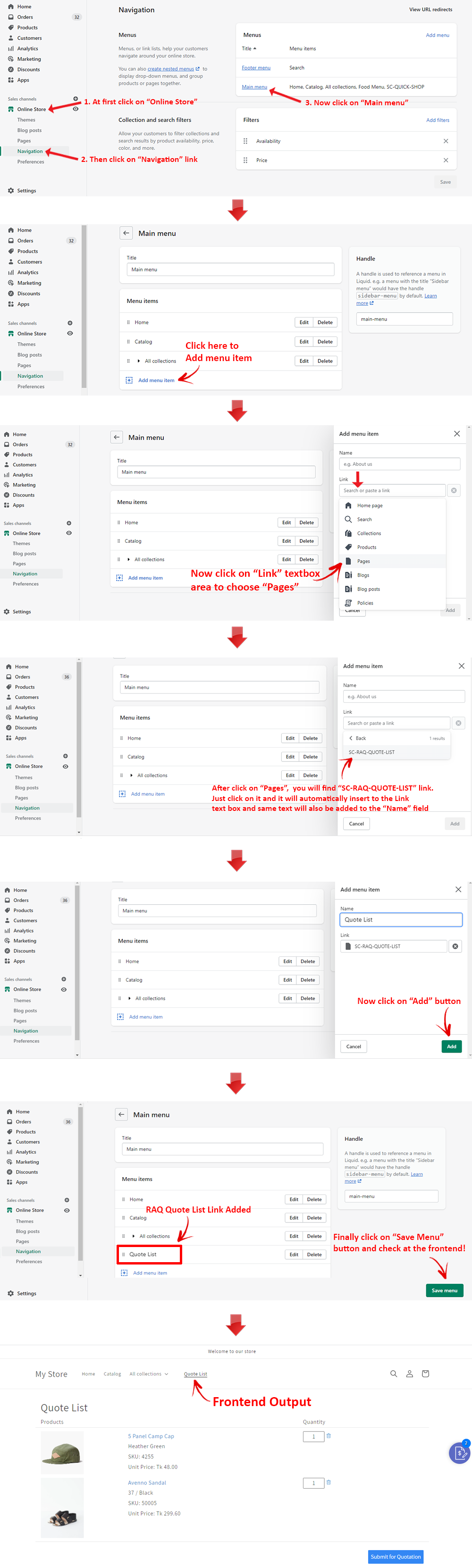
Why did my button design changes not appear?
Check these causes in order: the design was not saved, the change was made on a different theme, the storefront is showing a cached version, or custom CSS is overriding the app's styles.
Click Save Design, clear the browser cache or use a private window, and confirm you are viewing the correct theme. If the change still does not appear, send support the page URL and a screenshot of the saved design settings.
How can I enable the Quote List Page?
You can enable the Quote List Page by turning on the Enable Quote List Page toggle under the Quote Button Display Condition settings. This allows customers to access the quote list page.
Is there an option to upload a Quote List button? How can I do that?
Yes. You can upload a custom image for the Quote List button, and the app provides sample buttons for reference. SolverCircle lists a tutorial in its official Quote List Button upload FAQ.
How to add Custom CSS to make some changes in the design panel?
Use the custom CSS option in the design panel. SolverCircle lists a tutorial in its official custom CSS FAQ. The page currently shows a video label rather than a playable embed or direct link.
Quote List and Draft Orders
Where can I see all the quotes customers have submitted?
Open Quote List inside the YouQuote app. Every submitted request is stored there with the customer's details, products, quantities, prices, custom fields, and status.
A floating Quote List button can also be shown on the storefront for customers. The merchant-side quote list is the source of truth for reviewing and processing requests.
What information does a quote record contain?
A quote record normally includes the customer's name and email, the products and variants requested, images, SKUs, prices, quantities, comments, custom field answers, uploaded files, the submission date, and a status.
Some custom field data may appear in the notification email and the quote list but not in the Shopify draft order. Compare all three records before sending an order to the customer.
Can I search, filter, or archive quotes?
Yes. The quote list supports searching and filtering by date range, email, and status, and quotes can be archived when they are no longer active. The exact status labels and filters can vary by app version.
Archiving is useful for keeping the active list manageable. Export important records before archiving or uninstalling if you need them for accounting or reporting.
How do I create a draft order from a quote?
Open the request in Quote List, review the details, and use the Create Order action. YouQuote creates a Shopify draft order prefilled with the customer and the quoted products, which you can then review, adjust, and send.
Before sending, check the customer information, product variants, quantities, prices, discounts, shipping, and any custom information. A draft order is not a paid order until the customer completes checkout.
You can revise the quote in the admin Quote List, create the draft order, and email the customer a checkout link. See SolverCircle’s draft-order and checkout-link FAQ and its draft-order tutorial entry.
How do I set a custom price on a quote?
Use the Discount amount field on the quote or draft order to adjust the price. It is an adjustment control, not a replacement for the product's price, so check the calculated total before sending the offer.
If the quote is for a custom job or a quantity that is not represented by the original product, confirm the correct workflow with support. Do not assume that a custom field automatically changes the price.
Can I adjust the quantity in a quote or draft order?
Yes, the quote list and draft order workflow allow the merchant to adjust quantities. This is useful when a customer requests a bulk quantity that differs from the product page default.
A custom quantity field on the form does not automatically update the draft order. Check the submitted request, set the correct quantity in the quote or draft order, and verify the total before sending.
Why is custom field information missing from the draft order?
Some custom field data may appear in the notification email and in YouQuote's Quote List but not transfer automatically to the Shopify draft order. This is a known limitation in some versions and workflows.
Compare the quote record with the draft order before sending it. If information is missing, add it manually where appropriate and report the issue to support with the quote reference and draft-order reference.
How do I know which quote a draft order belongs to?
Keep a record of the originating quote when you create the draft order. Historical support conversations reported limitations in identifying the source quote directly from the draft order, especially when the customer or products are similar.
If the link is unclear in your current workflow, note the quote reference, customer email, date, and draft-order number before sending. Support can help investigate a specific case.
Can I revise a quote and send it again?
Yes, in the usual workflow you can edit the quote or draft order, adjust the price or quantities, and resend the updated checkout link to the customer. Communication with the customer normally happens by email.
For a negotiated price, record the agreed amount and keep the original request for reference. Test the updated link before sending it to the customer.
Can I create a quote manually from the admin?
The App Store listing includes admin quote creation. This lets a merchant build a quote for a customer without requiring the customer to submit the storefront form, which is useful for phone, email, or in-person enquiries.
Confirm the current workflow in your app version. When creating a manual quote, verify the customer details, products, quantities, and price before sending the checkout link.
Can I export quote requests?
Yes. The Quote List menu includes an Export option for exporting all quotes. Export the current data and check which fields and file format are included before relying on it for accounting or another system.
If you need a specific export format or additional fields, contact support. Export important records before archiving quotes or uninstalling the app.
Does submitting a quote request create an order or charge the customer?
No. A quote request is an enquiry, not a completed purchase. The customer is not charged when the form is submitted, and a draft order is not paid until the customer completes Shopify checkout.
The merchant reviews the request, prepares the price, and sends a quote or checkout link. Payment is collected through Shopify's checkout process when the customer accepts.
PDF Quotes, Invoices and Payments
Does YouQuote send quotes as PDFs?
Yes. The app supports emailing quotes as PDFs, and the App Store listing includes PDF quote generation. Premium plans also include sending a PDF quote with a checkout link.
The exact PDF layout and available fields can depend on the plan and app version. Send yourself a test PDF and check the customer details, products, quantities, prices, and links before using it with customers.
Can I add my logo or branding to the PDF?
Branding options depend on the current plan and template settings. The app supports editable email templates, and PDF generation is listed as a feature, but the available logo and layout controls can vary.
If you need a fully branded PDF with specific terms, deposit information, or a custom design, ask support what is included and whether custom development is required.
Can I include a checkout link in the quote?
Yes, on plans that include PDF quotes with checkout links. The customer can open the link and complete payment through Shopify checkout using the prices and products in the draft order.
Check the link before sending it, especially after editing the draft order. A checkout link should be treated as customer-specific and should not be shared publicly.
Can I add free shipping or a shipping cost?
Premium plans include free shipping and discount controls in the quote-to-draft-order workflow. You can adjust the draft order's shipping and discounts, then verify the final total.
Shipping rules can interact with Shopify settings and other apps. Test a complete checkout with the same shipping country and method the customer will use.
Can I offer a deposit or pay later?
The Plus plan includes partial deposit, pay later, pay on due date, and pay on order fulfilled. These options are listed for Shopify Plus stores only.
If you are not on Shopify Plus, check whether a simpler deposit or payment-term workflow can be achieved with Shopify's own draft-order and payment settings. Confirm eligibility and current pricing before promising a payment option to customers.
Can I use YouQuote for pre-orders or out-of-stock products?
YouQuote can display a quote button for out-of-stock products, which supports made-to-order and backorder enquiries. For a full pre-order workflow with payment collection, SolverCircle's Preorder, Draft Order - Pay Later app is the more appropriate tool.
The two workflows can be used together, but test the customer experience so it is clear whether the customer is requesting a quote or placing a pre-order.
Does YouQuote support multiple currencies?
The App Store listing includes multi-currency as a pricing rule. Actual currency behaviour depends on your Shopify Markets settings, the customer's context, and how the quote and draft order are created.
Test a quote in each currency you support. If the quote, PDF, or draft order shows an unexpected currency, contact support with the store URL and the currency combination you tested.
Emails and Notifications
Where do I manage quote notification emails?
Open Notification Settings in the YouQuote app. This is where you configure the admin notification address, the requester notification option, the sender settings, and the email template content.
After changing a setting, submit a test quote and confirm that the intended recipients receive the message. A setting that looks correct in the admin still needs an end-to-end delivery test.
Who receives quote notification emails?
YouQuote can notify the merchant/admin and the customer who submitted the request. The requester notification can usually be switched on or off, while the admin notification goes to the address configured in Notification Settings.
If several staff members need the notification, use a shared mailbox or distribution list, or check whether the current version accepts multiple recipient addresses.
Why am I not receiving quote notification emails?
First, check whether the request appears in Quote List. If it does, the form is working and the issue is email delivery. If it does not, see The form keeps spinning or the quote never appears in the dashboard.
Then check the notification address, spam or junk folder, and any mail-server filtering. Test with a different mailbox such as Gmail. If Gmail receives the message but your business mailbox does not, ask your email administrator to review filtering, quarantine, or distribution-list restrictions. This points to a recipient-side issue but does not guarantee that every delivery setting is correct.
Why do notification emails come from a SolverCircle address?
YouQuote typically sends from a verified SolverCircle sender address. A verified sending domain helps satisfy email authentication requirements and improves deliverability.
The sender address and the address that receives notifications are separate settings. No sender configuration can guarantee that every recipient's mail system will accept a message, so keep monitoring your spam and quarantine settings.
Can I use my own sender address or SMTP server?
The email wording and templates can be edited. Changing the sender to your own domain usually requires correct SMTP configuration and DNS authentication for that domain, which may be a custom setup.
Ask support what the current app version supports before promising a branded sender address to customers. If your own domain is required, provide the SMTP details and DNS access through a secure process, never in a public message.
Can I edit the email templates?
Yes. The app includes editable email templates, and the wording can be adjusted to match your brand and the type of quote you send. Keep the template clear about what the customer should do next.
Test every link and placeholder after editing. If a template uses a dynamic value, confirm that it renders correctly in the actual email rather than only in the editor.
Does the customer receive a confirmation after submitting a quote?
Yes, if the requester notification is enabled. The customer can receive an email confirming the request, and the merchant receives the admin notification.
Tell customers what happens next — for example, that you will review the request and send a quote within a certain period. Only promise a turnaround time that your team can consistently meet.
Theme, Mobile and Language
Does YouQuote work with my Shopify theme?
YouQuote works with many Shopify themes, but compatibility depends on the theme, its version, and its product-form structure. Standard themes usually need only the app embed, while heavily customized themes may need a selector or a small Liquid change.
Test the quote button, form submission, cart behaviour, and quote list link on your theme before launching. If something does not render correctly, send support the theme name, page URL, and a screenshot.
SolverCircle says YouQuote also works with other extensions in most cases, but conflicts can happen. Test the combination in your store and contact support if you find a conflict. See the official theme and extension compatibility FAQ.
Does YouQuote work on mobile devices?
Yes. The storefront button and quote form are designed to be responsive, and the app listing includes mobile screenshots. Test on a real phone as well as a browser's mobile view.
Check the product page, collection page, popup or embedded form, file upload, and checkout link. Mobile issues often come from theme CSS rather than the app itself, so include a screenshot when reporting them.
Does YouQuote slow down my storefront?
The app is designed as a lightweight storefront embed, but performance depends on the theme, other installed apps, scripts, and how many features are enabled. No app can guarantee identical speed on every store.
If you notice a slowdown, test the same page with the app disabled and compare, then review other recent apps or theme changes. Support can help identify whether the app is involved.
Can I test YouQuote on an unpublished theme?
Yes. Enable the app embed in the unpublished theme and use that theme's preview to check the button, form, and quote list. This lets you test changes without affecting the live storefront.
When the test is complete, publish the theme or apply the same settings to the live theme. Remember that app embeds and some theme customizations are theme-specific.
What should I check after changing my Shopify theme?
Recheck the app embed, button placement, product and collection selectors, popup or embedded form, cart behaviour, and any custom CSS or Liquid code. Theme updates can change the HTML structure the app relies on.
Run the full test journey again before announcing the change to customers. If the button disappears or the layout breaks, contact support before making more changes.
Can I use YouQuote in multiple languages?
Yes, the app supports multilingual storefronts. The App Store listing lists English, Spanish, French, German, Portuguese (Portugal), and Dutch.
You can adjust form labels and email wording for your audience. If you need a language that is not listed, or a right-to-left layout, ask support about current support and any custom work required.
Does the app handle accents and non-Latin characters?
The app is used by merchants in multiple countries. Because rendering can vary by theme, template, and app version, test your specific language — including any accents or non-Latin characters — in the form, notification email, PDF, and draft order.
If a character renders incorrectly in one of those places, report the exact text and a screenshot. The fix may be in a template rather than in the form itself.
Cart, Checkout and B2B
Can customers turn their cart into a quote request?
Yes. Cart-to-quote is an app feature: customers can submit the items already in their cart as a quote request instead of proceeding to checkout. This is useful when a customer has built a mixed order and needs a price.
Test the cart page and the cart drawer separately if your theme uses both. Confirm that the correct items and quantities appear in the quote.
Can I show a Request a Quote button on the cart page?
Yes. YouQuote supports a quote button on the cart page, and the app's cart settings can be used to show it. Some themes use a full cart page while others use a drawer, so the placement may differ.
If the button does not appear, tell support whether you are using a cart page or a drawer and include the theme name. A store-specific selector may be needed.
Can I hide prices until a customer logs in?
The App Store listing includes price login as a pricing rule, and YouQuote can work with stores that show prices only to signed-in customers. The exact conditional behaviour depends on your theme, Shopify settings, and the app version.
If you need the quote button to appear only for guests, only for logged-in customers, or only for a customer tag, treat that as a custom requirement and ask support to confirm what is possible.
Can I show different prices to wholesale or B2B customers?
YouQuote handles the quote request, while SolverCircle's Wholesale Simplified app handles wholesale pricing, customer groups, and tiered price lists. The two apps can work side by side.
Passing data between them or showing a fully conditional quote flow may require custom work. Describe the customer groups and pricing rules to support so the scope can be confirmed.
Can I import a tiered price list from Excel?
Bulk tiered price lists are usually handled by Wholesale Simplified or PriceBazi rather than by YouQuote. If you have an existing spreadsheet, send support a sample and ask which app and import route fits the requirement.
Do not assume that a custom field or a product tag can reproduce a full tiered pricing table. A formula or bulk pricing rule is a separate feature.
Does YouQuote work with other SolverCircle apps?
The App Store listing lists compatibility with Optionify, Preorder/Draft Order - Pay Later, and PriceBazi, and YouQuote can be used alongside Wholesale Simplified and PODbazi in relevant workflows.
Compatibility depends on the specific apps and configuration. Test the complete customer journey before relying on a combined setup, and tell support which apps you use.
Does YouQuote work with Shopify Flow?
Shopify Flow is listed as a supported integration. You can use Flow for automation around orders, customers, or other Shopify events, but the exact triggers and actions depend on the current app integration.
Test the Flow in a development store before enabling it on a live store. If a trigger does not fire, check the Flow run log and the app permissions.
Is YouQuote available for Ecwid or other platforms?
YouQuote is a Shopify app. Features such as draft orders, Shopify checkout links, and admin quote management depend on Shopify's platform.
If you need a similar workflow on Ecwid or another platform, that would be a separate custom development. Ask SolverCircle for a scope and quote rather than assuming the Shopify app can be installed elsewhere.
Pre-Order
Can I offer both "Request a Quote" and "Pre-Order" options on my Shopify store using one app?
Yes! YouQuote includes built-in Pre-Order functionality alongside its Request a Quote feature. You can configure specific products or out-of-stock products to display a Pre-Order button while keeping other products available through regular checkout or quote-request workflows. This allows you to manage both quoting and pre-orders from one app.
Can I create preorder rules for specific products and customers?
Yes! YouQuote allows you to create customized preorder rules for selected products and customer groups.
- Products: Select specific products to which the preorder rule should apply.
- Customer Tags: Assign customer tags (such as preorder) to target specific customer groups.
This gives you greater control over which products and customers can access your preorder offers.
Can I display the Pre-Order button based on product inventory status?
Yes! YouQuote provides three inventory conditions for displaying the Pre-Order button:
- Out of Stock: Displays the Pre-Order button when a product is out of stock. The Shopify product must have "Continue selling when out of stock" enabled.
- In Stock: Displays the Pre-Order button for products that are currently in stock. Existing Shopify inventory settings are followed.
- Always: Displays the Pre-Order button regardless of inventory status, subject to applicable Shopify inventory settings.
You can select the condition that best matches your preorder requirements.
How can I allow customers to purchase out-of-stock preorder products through Shopify Checkout?
If a preorder product or variant has zero inventory, Shopify may block checkout unless its inventory policy allows continued selling.
To enable customers to purchase out-of-stock products, go to Shopify Admin, open the relevant product or variant, and enable Continue selling when out of stock under its inventory settings.
Also, make sure your YouQuote preorder rule is configured with the appropriate inventory condition.
How does payment work for pre-orders? Can customers place an order now and pay when it ships?
Yes! YouQuote supports flexible preorder payment workflows. Depending on your payment configuration, customers can place an order without paying the entire amount upfront.
For deferred or remaining-balance payment arrangements, customers can complete the checkout process, and the outstanding payment can be collected later according to your configured payment schedule.
When the payment is configured to be collected at fulfillment, the remaining balance is processed when the order is fulfilled or marked as shipped in Shopify, subject to your Shopify payment gateway and payment authorization settings.
What payment options are available for preorder products?
YouQuote provides three payment types:
- Full Payment: Customers pay the complete order amount when placing their order.
- Partial Payment: Customers pay an initial deposit, and the remaining balance is collected later.
- Full & Partial: Allows customers to choose between paying the full amount or making a partial payment.
These options help you offer flexible payment arrangements for your preorder products.
Can I collect a partial deposit for preorder products?
Yes! YouQuote supports deposit-based preorders, allowing you to collect an initial payment when customers place their orders.
You can configure the deposit using either of these options:
- Percent: Collect a percentage of the total order amount, such as 10%, 30%, or 50%.
- Amount: Collect a fixed monetary amount as the initial deposit.
You can also customize the payment title and description displayed to customers.
Note: If you use third-party product option or variant apps, such as YMQ Product Options, please contact our support team so we can verify deposit calculations with custom variant pricing.
When and how can I collect the remaining preorder balance?
YouQuote provides two options for collecting the remaining balance after the initial deposit:
- At Fulfillment: Collect the remaining balance when the order is fulfilled.
- Specific Days After Checkout: Schedule the remaining payment for a specific number of days after checkout.
You can choose the option that best suits your preorder business workflow.
Can I offer discounts on preorder products?
Yes! YouQuote allows you to configure discounts within your preorder payment settings.
You can choose from three discount options:
- None: No discount is applied.
- Percent: Apply a percentage-based discount.
- Amount: Apply a fixed monetary discount.
This allows you to offer special pricing and promotional discounts to customers placing preorder orders.
When can I deduct inventory for preorder products?
YouQuote provides two inventory deduction options:
- At Checkout: Inventory is deducted when the customer completes checkout.
- At Fulfillment: Inventory is deducted when the order is fulfilled.
Choose the appropriate option based on how you want to manage inventory for your preorder products.
Why isn't the Pre-Order or Request a Quote button appearing on my product page?
If the Pre-Order or Request a Quote button is not appearing, check the following:
- Verify that the product is included in the relevant preorder rule or quote configuration.
- Check the product's inventory status in Shopify Admin.
- Verify whether Continue selling when out of stock is enabled or disabled, as required by your selected inventory condition.
- Make sure the preorder rule is active and its availability settings are correct.
- Check whether your Shopify theme or another app is interfering with the button display.
If the issue persists, contact our support team. We can help check your theme configuration and button selectors.
Can I display an estimated shipping date or timeframe for preorder products?
Yes! You can configure an estimated shipping timeframe for preorder products so customers know when to expect their orders to be dispatched.
Displaying an estimated shipping schedule helps set clear delivery expectations and improves the customer purchasing experience.
What happens if a customer adds multiple preorder products to their cart?
Customers can add multiple preorder products to their cart and proceed through a single checkout flow. The preorder items are consolidated into a single preorder order workflow, making it easier for customers to purchase multiple preorder products together.
Can I customize the Pre-Order button to match my Shopify store's design?
Yes! You can customize the Pre-Order button's appearance to match your store's branding and theme.
Available styling options include:
- Button text color
- Background color
- Border color
- Hover background and text colors
This allows you to create a consistent appearance across your Pre-Order, Request a Quote, and Add to Cart buttons.
Can I test the Pre-Order functionality on an unpublished or draft Shopify theme?
Yes! You can test the Pre-Order functionality on a duplicate or unpublished Shopify theme before making it available on your live store.
If you are already using another preorder app or want to avoid affecting your live store, contact our support team. We can assist with configuring and testing YouQuote on your unpublished theme.
Does your Extra Product Options app also support Pre-Orders?
Yes! Our Extra Product Options app also includes built-in Pre-Order workflow support alongside Draft Order Checkout for custom product option pricing.
Troubleshooting
The Add to Quote button shows but clicking it does nothing. What should I do?
A button that renders but does not respond usually points to a theme script conflict, a blocked app script, or an app-proxy problem. Test the page in a private window and confirm you are viewing the intended theme.
If the problem continues, send support the page URL, theme name, and a short recording of the click. Mention recent theme changes and any other quote apps installed. A visible button does not prove that its form or submission integration is working.
The form keeps spinning or the quote never appears in the dashboard. What should I do?
Check Quote List before submitting the same request repeatedly. If the request is not there, record the time, page URL, and any error message, then contact support. A short screen recording is helpful.
Some historical cases involved app-proxy configuration, but an endless spinner alone does not establish the cause. Do not change proxy settings on a live store without support guidance.
I see "The Exception Error: unknown" when saving a form. How do I troubleshoot it?
Record the error and the exact steps that trigger it. Try the default form or a form with fewer custom fields to help isolate whether a particular field is involved, but do not delete a working configuration without recording its fields first.
Send support the form details and a screenshot. An error does not by itself prove that you have exceeded a field limit; the cause may be a field configuration, a temporary service issue, or a form conflict.
Can another quote app conflict with YouQuote?
Yes. Running more than one request-a-quote app can break the app proxy, which may make the button disappear or point to the wrong app. Other apps can also modify product forms, prices, or cart behaviour.
Ask support to investigate before removing apps or changing proxy settings on a live store. Where possible, test with the other quote app disabled on an unpublished theme and confirm the complete quote workflow.
What should I try before contacting support about a display issue?
Run this sequence: clear the browser cache and cookies, restart the browser completely, try a different browser or private window, confirm the app embed is enabled, and check the unpublished theme preview if the store is not public.
Also confirm the product or collection is included in your quote settings and does not carry the Raq Disabled tag. If the issue remains after these checks, send the page URL and a screenshot.
The product page layout broke after I enabled the app. What should I do?
Disable the most recent display change — such as hide price, hide Add to Cart, or a custom CSS rule — and check the page again. Some themes need a different selector or a small layout adjustment.
Do not keep applying CSS fixes to a live theme without a backup. Contact support with the theme name, page URL, and a screenshot of the broken layout, and test the fix on a duplicate theme.
Why did an old quote or duplicate request appear?
Test submissions, repeated clicks, and interrupted form loads can create duplicate or blank records. Check the submission time, customer email, and content to identify test data, then archive it so the active quote list stays clean.
If duplicates appear during normal customer use, record the time, product, and browser and report it to support. Do not assume that every duplicate is caused by the customer clicking twice.
What information should I include in a support request?
Include your Shopify store URL, theme name, the affected page or product URL, your plan or app version if visible, the expected result, the actual result, and the steps to reproduce the issue. Add a screenshot or short recording, and for quote or email issues include the quote reference and approximate time of the test.
Never send your Shopify password or full customer payment details. If access is needed, support can explain the minimum collaborator or staff permissions required.
Plans, Billing and Support
What do the plans cost?
The Shopify App Store listing shows a Free plan for development stores, Premium at $14.99 per month, and Plus at $29.99 per month for Shopify Plus stores. A 10-day free trial is available.
Prices, plan names, and feature availability can change. Confirm the current terms on the App Store listing and in your Shopify Admin billing records before publishing them.
Is the Plus plan available to every store?
No. The Plus plan is listed for Shopify Plus stores only. Other stores can use the Premium plan; the Free plan is for development stores.
If you are not on Shopify Plus but need deposit or pay-later terms, ask support whether a Shopify-native workflow can meet the requirement. Do not promise Plus features to a customer before confirming eligibility.
How is the subscription paid?
YouQuote uses Shopify's app billing. Charges appear on your Shopify invoice, in USD, and recurring charges are billed every 30 days using the payment method already configured for your store.
Check Shopify Admin for the authoritative charge and subscription record. A support message or the end of a trial does not by itself confirm that a particular payment has been collected.
How do I upgrade or downgrade my plan?
Use the plan or upgrade option in the app, or manage the subscription from Shopify Admin. Shopify processes the change and the new plan's features become available according to the current billing rules.
Before downgrading, check which features you would lose — for example, multiple forms or deposit options. Export important quote data and test the storefront after the change.
How do I cancel or uninstall YouQuote?
In Shopify Admin, go to Apps, open the menu beside YouQuote, and choose Uninstall or Delete. Uninstalling cancels future recurring charges, but a charge for the current billing cycle may still appear.
Export any quote data you need before uninstalling. Disabling the storefront button or turning off an app embed is not the same as cancelling the subscription.
What happens to my quote data if I uninstall the app?
Quote data is stored by the app and is subject to the app's privacy policy and Shopify's data policies. Export the records you need before uninstalling, because access to the app's quote list ends when the app is removed.
If you need confirmation about retention or deletion, contact SolverCircle support and review the privacy policy. Do not assume that uninstalling immediately deletes every record.
How do I contact YouQuote support?
Email install@solvercircle.com, use the in-app live chat during business hours, or open a request through the SolverCircle support portal. The Shopify App Store listing also links to support resources.
Include the store URL, theme, affected page, expected and actual behaviour, and a screenshot or recording. For quote or email issues, include the quote reference and the approximate time of the test.
Does SolverCircle offer custom development?
Yes. Custom pricing formulas, conditional button behaviour, unusual theme integrations, and other requirements outside the standard app can be scoped as paid custom development.
Send the requirement with examples, screenshots, and the desired customer journey. The team can confirm scope, timeline, and cost before work begins. Standard integrations may be included in a plan, while complex theme or third-party changes may incur a fee.
Where do I contact SolverCircle about app customization?
For a customization request, email install@solvercircle.com or shopify@solvercircle.com, use the in-app live chat, or contact SolverCircle through its website. The official customization contact FAQ lists the contact options. Include your store URL, what you want to change, and an example or screenshot if available.
Where can I find tutorials, videos, and the demo store?
The YouQuote knowledge base contains setup videos and written answers, and the demo store lets you see the storefront workflow. The app also includes a Help Center and Quick Start content.
Use the written FAQ for the exact steps and the videos for visual confirmation. If a video shows an older interface, prefer the current app screens and ask support when the labels differ.
Some video entries on the public knowledge base are labelled but do not currently expose a playable video or a direct video URL. Use the written steps here or ask SolverCircle support for the current recording.
How do I leave a review for YouQuote?
Open the YouQuote Shopify App Store listing, sign in with the store that installed the app, and use the review form. Reviews help other merchants evaluate the app.
If you have a problem, contact support first so the team has a chance to resolve it. A review is most useful when it describes the feature or support experience clearly.
Does the Request a Quote app have a Free Trial?
Yes. The Shopify App Store listing advertises a 10-day free trial. SolverCircle’s free-trial FAQ describes access to all features during the trial, with no limits on the number of products you try or the orders you process. Confirm the terms and the plan that applies to your store in Shopify before approving any charges.
What is the cost of integration?
It depends on the complexity of the work. If you work with Shopify, standard integrations are always included in our pricing plans. If integration with your store requires changes due to the complexity of your theme or third-party applications, a custom integration fee will apply.
Still need help?
Contact SolverCircle at install@solvercircle.com for assistance, questions, or technical support. Please include your Shopify store URL, theme name, the affected page or product, the expected and actual behaviour, and steps to reproduce the issue.
Contact SolverCircle →